Back to Blogs
How to Connect Google Sheets in TenseAi and Automate Spreadsheet Creation
Tech

How to Connect Google Sheets in TenseAi and Automate Spreadsheet Creation

Learn how to connect Google Sheets with TenseAI and automatically create spreadsheets using Ai.

TenseAi Developer Team

TenseAi Developer Team

Apr 07, 2026
8 min read

"Google Sheets integration with TenseAI makes managing data **simple, fast, and efficient**. Instead of manually creating and organizing spreadsheets, users can just type a command, and TenseAi **automatically generates a well-structured Google Sheet**. This helps in tasks like data tracking, project management, and real-time collaboration while **saving time, reducing errors**, and boosting overall productivity."

TenseAi Developer Team
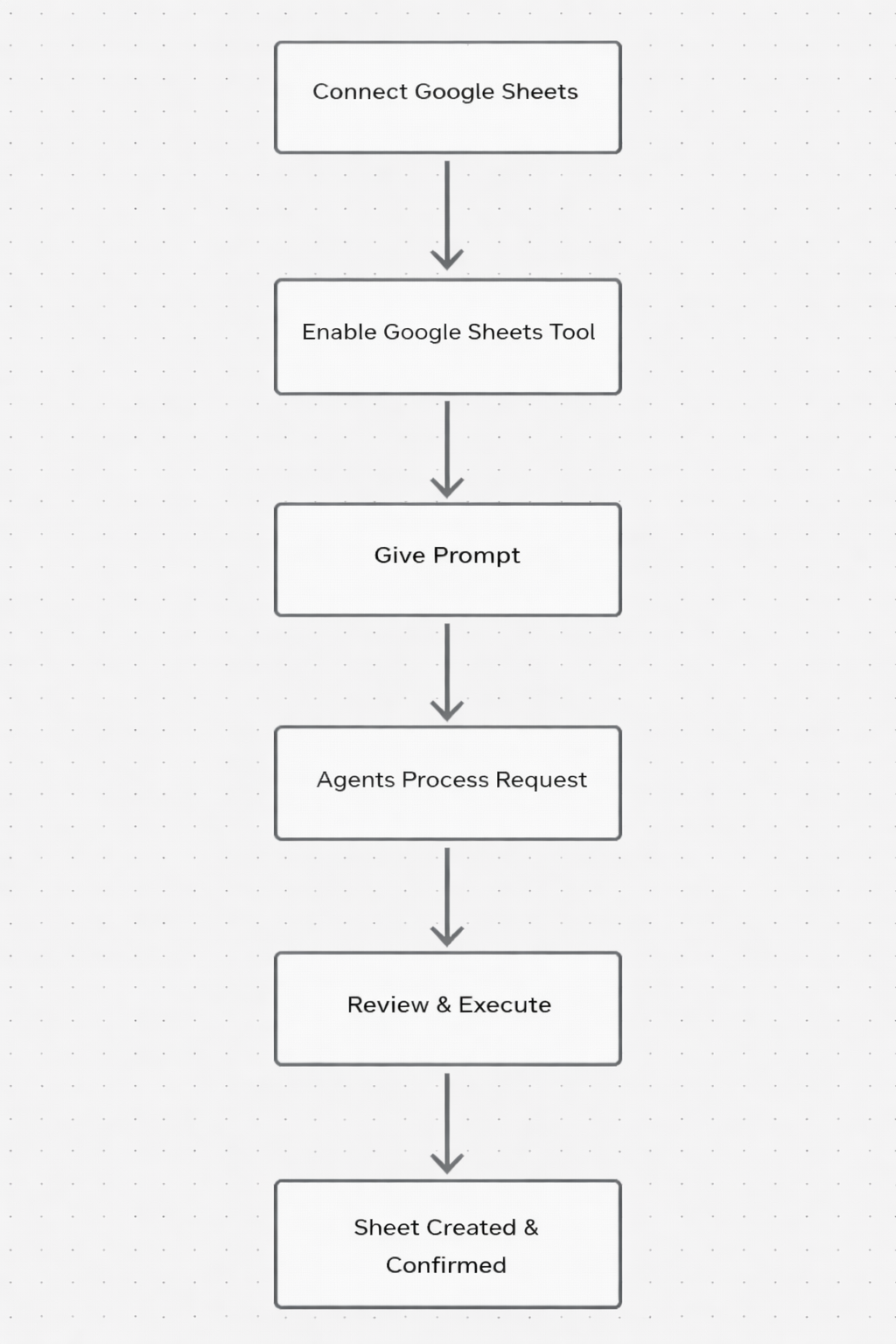
📊 Workflow Flowchart:

Google Sheets Workflow Flowchart

Step 1: 🔗 Connect Google Sheets

To connect Google Sheets with TenseAi, simply click on the Connect button from the tools section and sign in with your Google account. After granting the required permissions, a secure connection is established that allows TenseAi to access and manage your Google Sheets. This setup enables seamless spreadsheet automation, making it easier to create and manage data without manual effort.
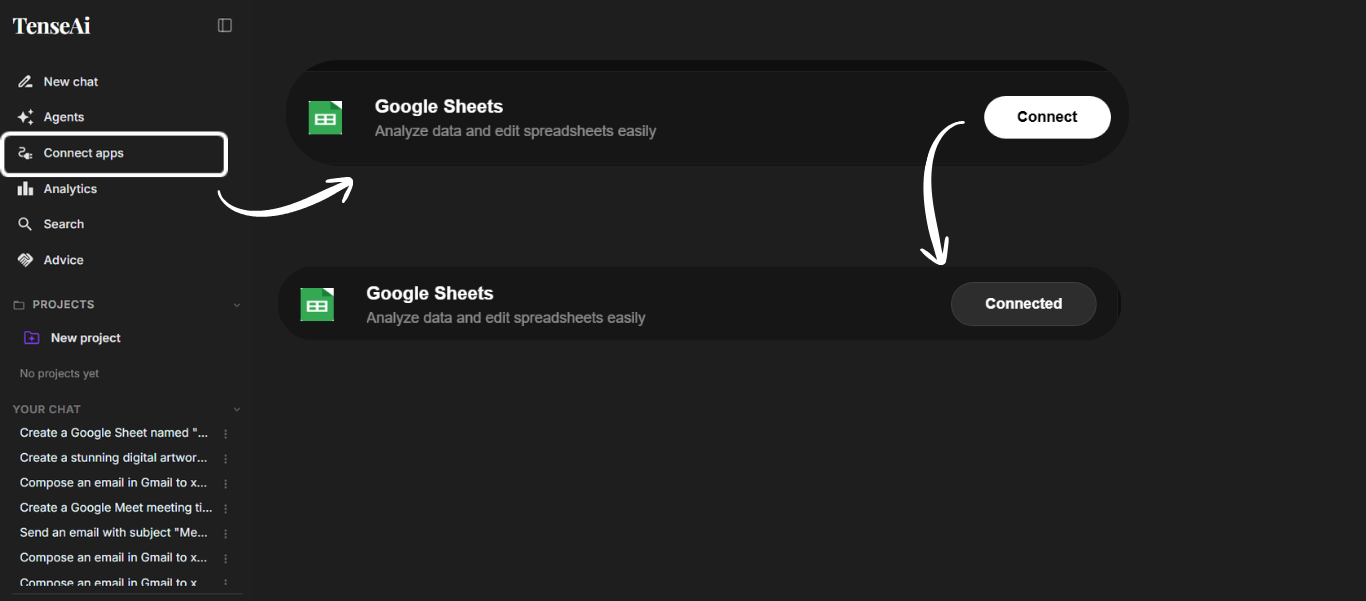
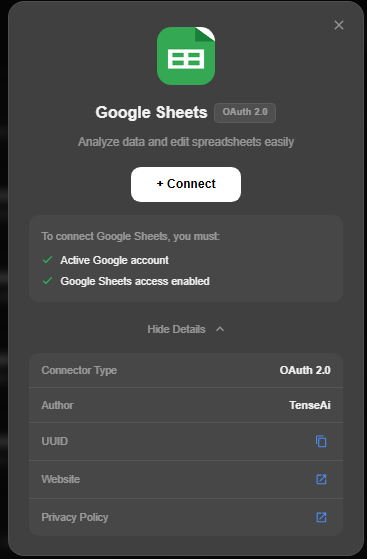
Connect Sheet
  • Locate the Google Sheets integration in the tools section. Cicking Connect starts the secure OAuth 2.0 authentication process.
  • Once connected, TenseAi can access your sheets to automatically create, edit, and manage spreadsheets, making data handling faster and smarter.
Sheet Auth
  • TenseAi uses OAuth 2.0 authentication to ensure your data is safe and secure. Click Connect to log in and grant permissions.
  • With an active connection, the platform gains secure access to automate spreadsheet tasks with full transparency.

Step 2: ✅ Enable Google Sheets Tool

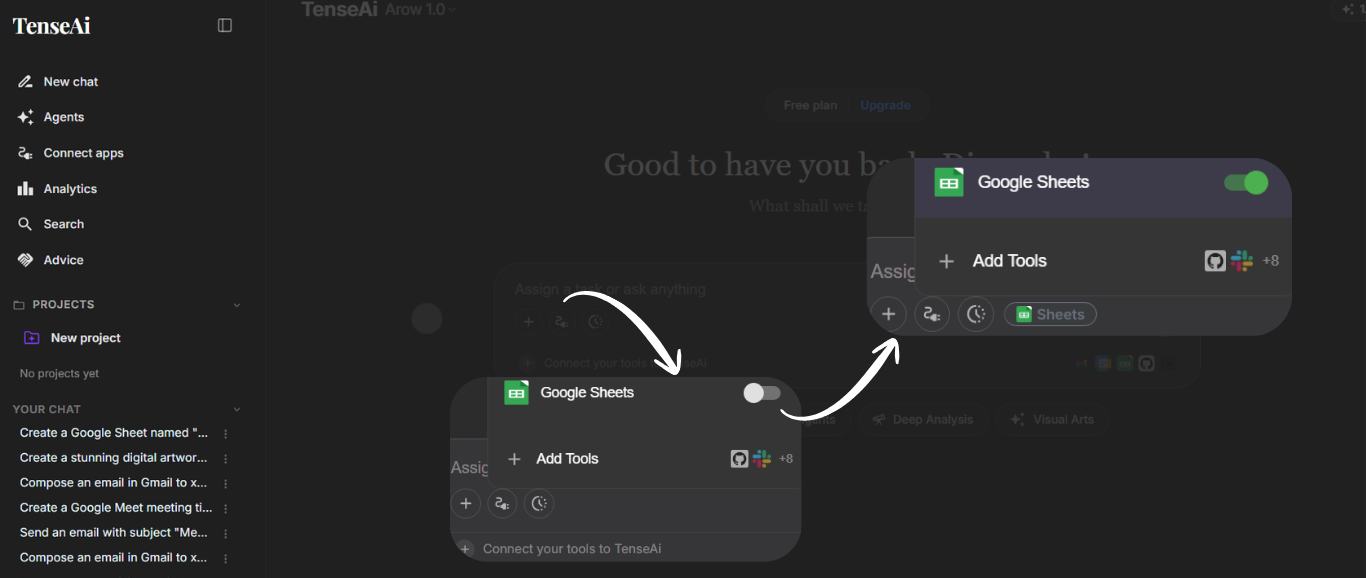
  • After connecting, you must enable the tool from the Tools section. Simply turn the Google Sheets toggle ON.
  • Once activated, TenseAi can access spreadsheet features and automatically manage data based on your commands.
  • This activation is essential for enabling smooth and efficient spreadsheet automation.
Sheet Toggle
  • Off State: The tool is connected but inactive. TenseAi cannot perform automated tasks.
  • On State: The toggle is green. Google Sheets is now fully active and ready for AI-powered automation.
  • Enabling the tool is the key step to unlocking full integration and efficient data automation.

Step 3: ✍️ Give a Prompt

  • Provide a natural language prompt like 'Create a monthly sales report' or 'Generate a student grade sheet.'
  • TenseAi automatically generates a well-structured Google Sheet with all the required columns and data.
  • This makes spreadsheet management significantly faster and more accurate.
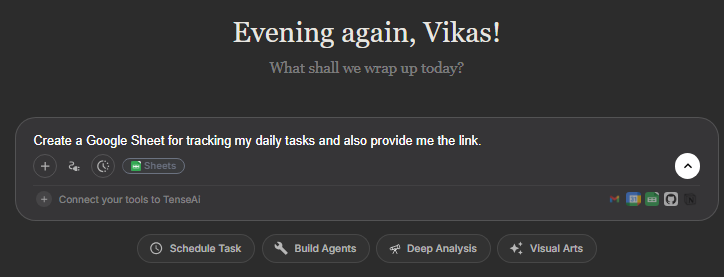
Prompt

PROMPT:

Recommended Prompt

Create a Google Sheet for tracking my daily tasks and also provide the link.
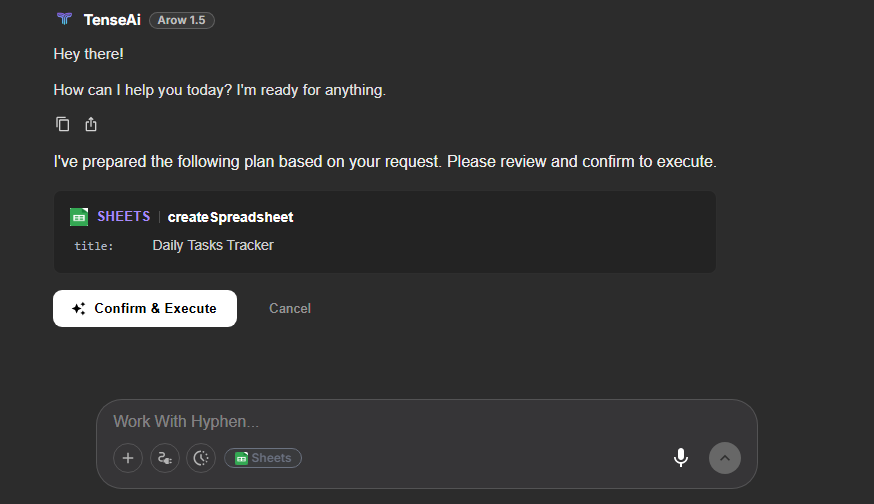
Step 4: ⚙️ Agent Processes Request

  • TenseAi intelligently understands your request and converts it into structured data for spreadsheet creation.
  • It identifies key details like the sheet title and purpose (e.g., 'Daily Tasks Tracker').
  • This smart processing ensures that all information is organized, accurate, and ready for instant execution.

Step 5: 👁️ Review & Execute

  • TenseAi presents a clear preview of your setup. Review all the details, including the title and column structure.
  • Click Confirm & Execute to create the spreadsheet. This gives you full control over the automation process.
  • This step ensures accuracy and reliability in your automated workflow.
Sheet Execute
  • Review the structured plan before the sheet is created. Verify the title and intended purpose to avoid errors.
  • Clicking Confirm & Execute triggers the automated creation. It's a smooth and reliable experience with zero guesswork.

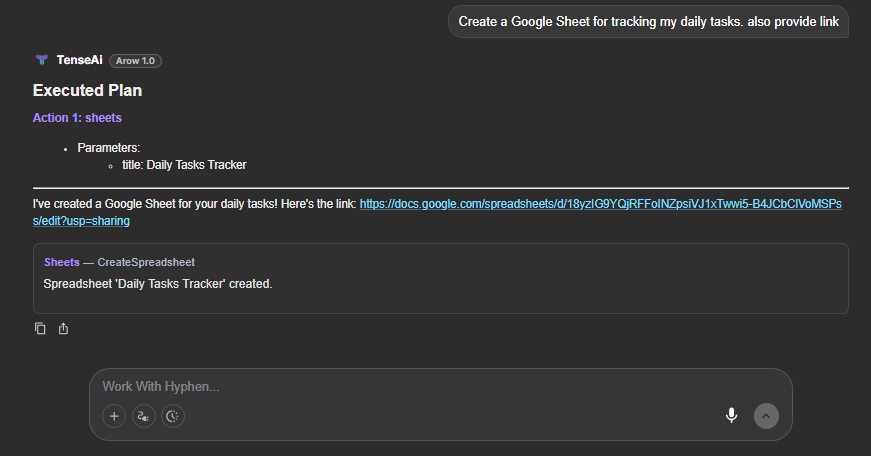
Step 6: 🎉 Sheet Created & Confirmed

  • TenseAi instantly creates your spreadsheet. A shareable link is generated for immediate access.
  • This seamless process ensures fast, accurate, and hassle-free spreadsheet creation with zero manual work.
Sheet Created
  • View the Executed Plan with key details and a direct link to your new sheet.
  • This final stage provides full transparency and quick access to your data, optimized for productivity.