Back to Blogs
How to Connect Google Meet in TenseAI and Schedule Meetings Automatically
Tech

How to Connect Google Meet in TenseAI and Schedule Meetings Automatically

Learn how to connect Google Meet with TenseAI and automate meeting scheduling using simple commands.

TenseAi Developer Team

TenseAi Developer Team

Apr 07, 2026
8 min read

"Google Meet integration with TenseAI makes **scheduling and managing online meetings simple, fast, and fully automated**. Instead of setting up meetings manually, users can just type a **natural language prompt**, and TenseAI takes care of everything from selecting the date and time to **creating the meeting link**. This smart automation saves time, reduces manual effort, and ensures accurate scheduling without errors."

TenseAi Developer
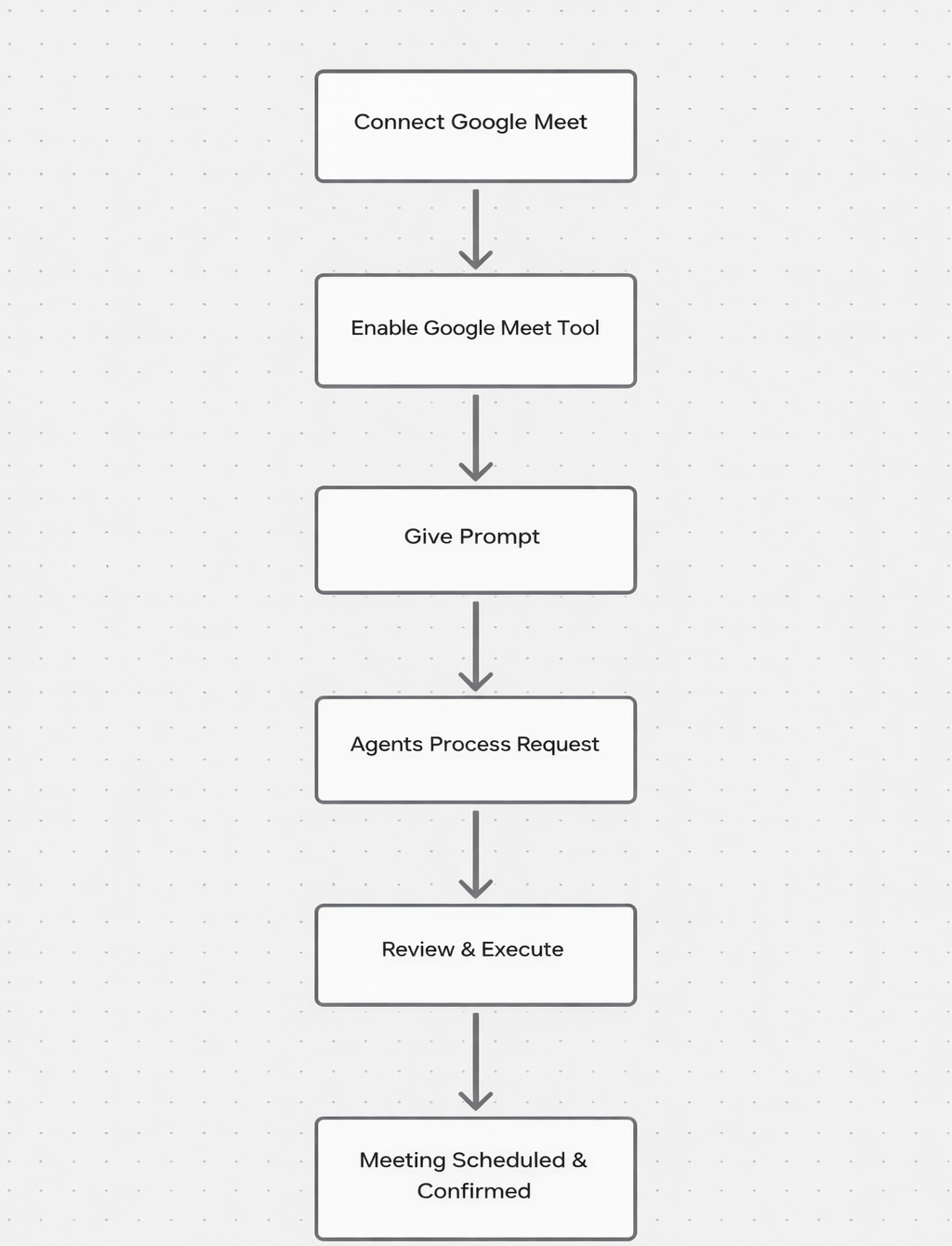
📊 Workflow Flowchart:

Google Meet Workflow Flowchart

Step 1: 🔗 Connect Google Meet

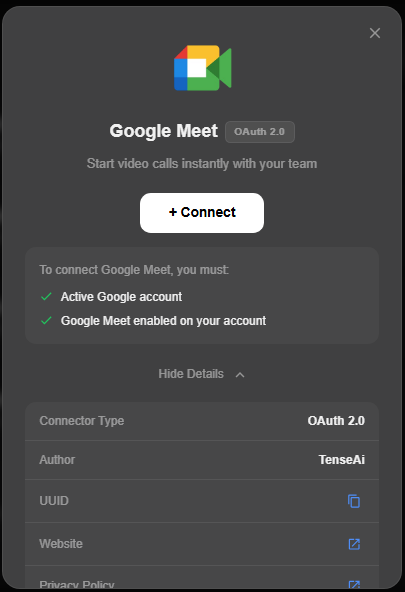
To connect Google Meet with TenseAI, simply click the Connect button in the Tools section and sign in with your Google account. After granting the required permissions, a secure, encrypted connection is established that allows TenseAI to access meeting features like creating and managing events. Once connected, Google Meet is ready for automation, enabling you to schedule meetings instantly using simple commands.
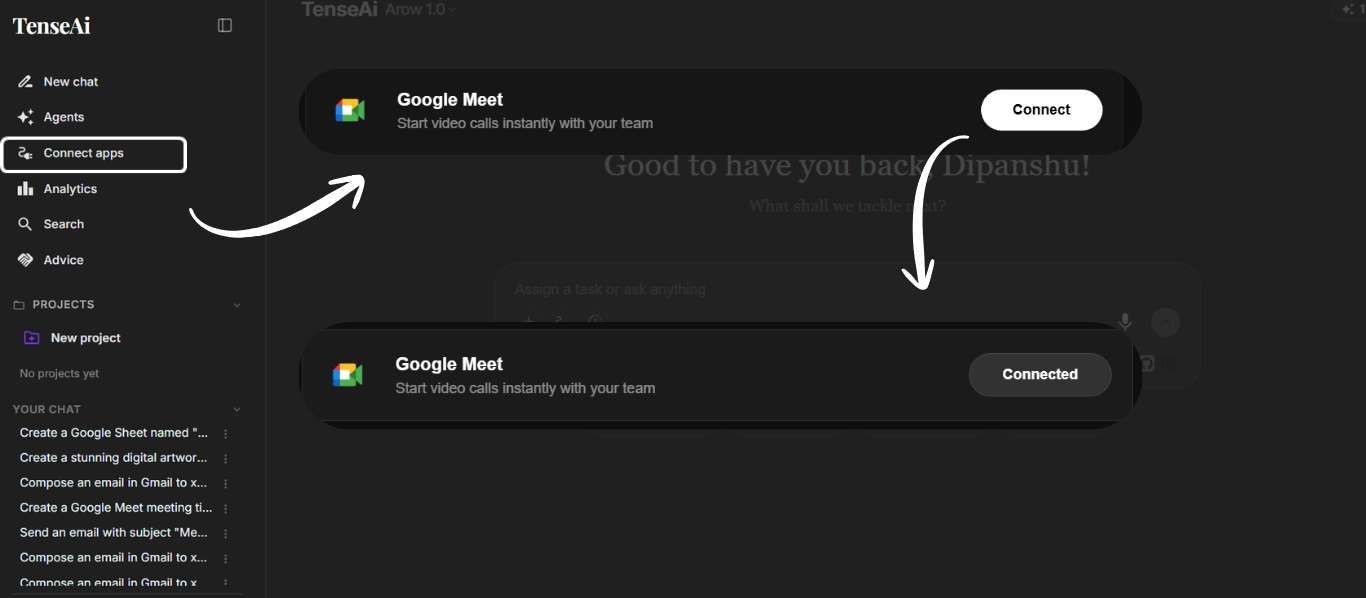
Connect Google Meet

Locate Google Meet in the tools section. Clicking Connect starts the secure OAuth 2.0 authentication process. Once connected, TenseAI can access Meet features to automatically create, schedule, and manage meetings instantly.
Connect Meet

Setup is safe and transparent. Using OAuth 2.0, TenseAI ensures a secure connection to your Google workspace. Once authorized, you can automate meeting scheduling with high efficiency and zero manual work.
Step 2: ✅ Enable Google Meet

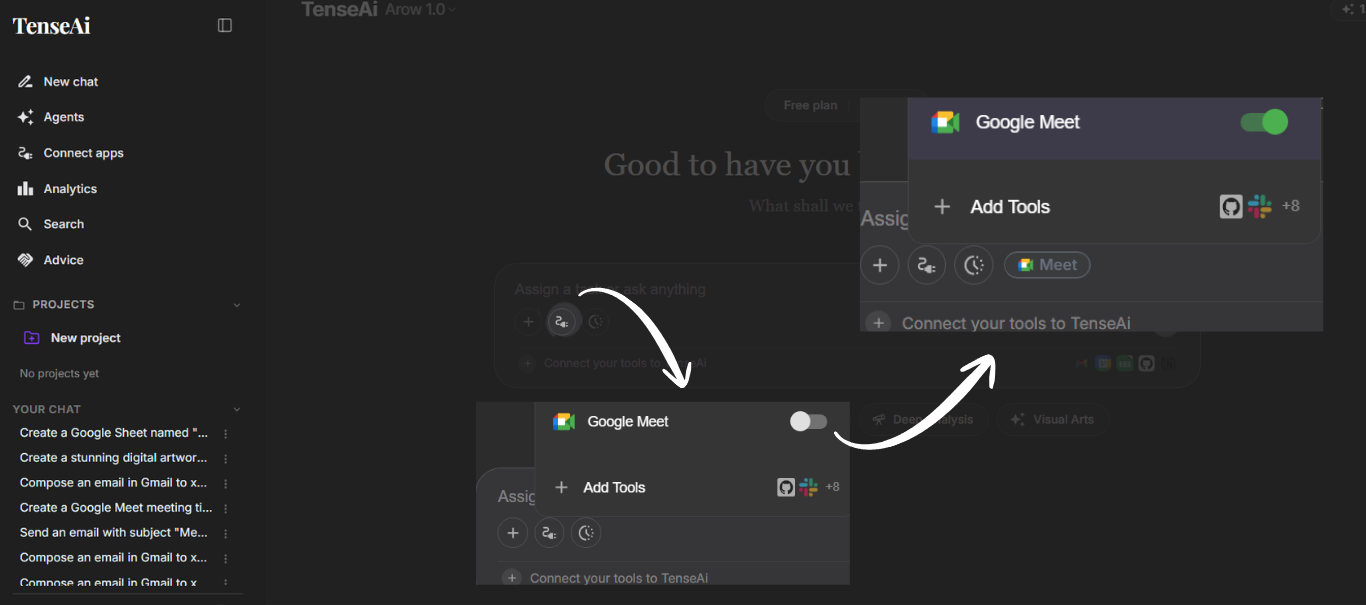
  • After connecting, you must enable the tool from the Tools section. Simply turn the Google Meet toggle ON.
  • When active, TenseAI can access your meeting schedule and automatically create links based on your demands.
  • Activating the tool ensures a smooth, efficient, and fully automated virtual meeting experience.
Enable Google Meet

Step 3: ✍️ Give a Prompt

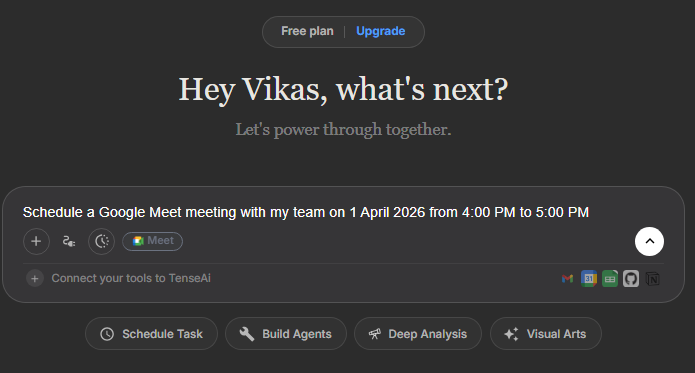
  • Simply provide a natural language Prompt like 'Schedule a Google Meet meeting for tomorrow at 4 PM.'
  • TenseAI will automatically understand your intent and capture key details like meeting purpose and timing.
  • This makes meeting scheduling easy and accessible, even for users without any technical expertise.
Prompt Goggle Meet

PROMPT:

Recommended Prompt

Schedule a Google Meet meeting with my team on 1 April 2026 from 4:00 PM to 5:00 PM
Step 4: ⚙️ Agent Processes the Request

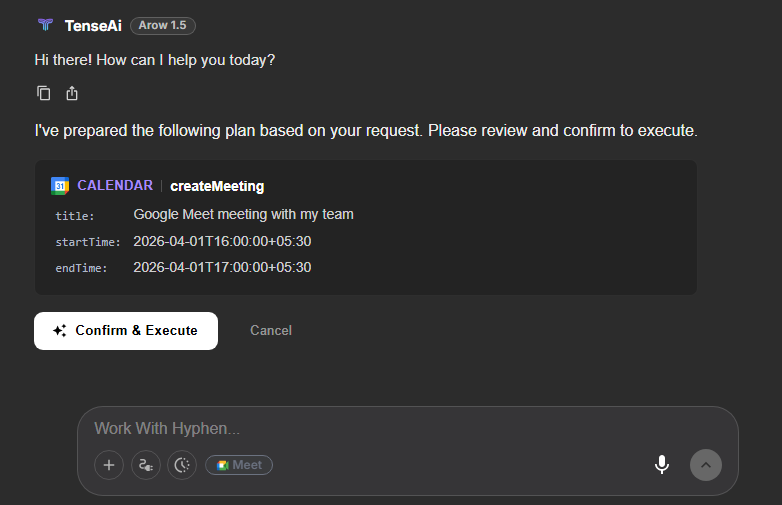
  • TenseAI smartly analyzes your request and converts it into structured data for accurate meeting creation.
  • It automatically extracts the meeting title, date, and time, organizing everything for a seamless execution.
  • This ensures precise scheduling and makes meeting automation completely effortless.

Step 5: 👁️ Review and Execute

  • TenseAI provides a detailed preview of your meeting configuration. Review the title and time for accuracy.
  • Click Confirm & Execute to finalize. This gives you full control over the scheduling process.
  • This validation step ensures a reliable and error-free automation workflow.
Execute

Step 6: 🎉 Meeting Scheduled & Confirmed

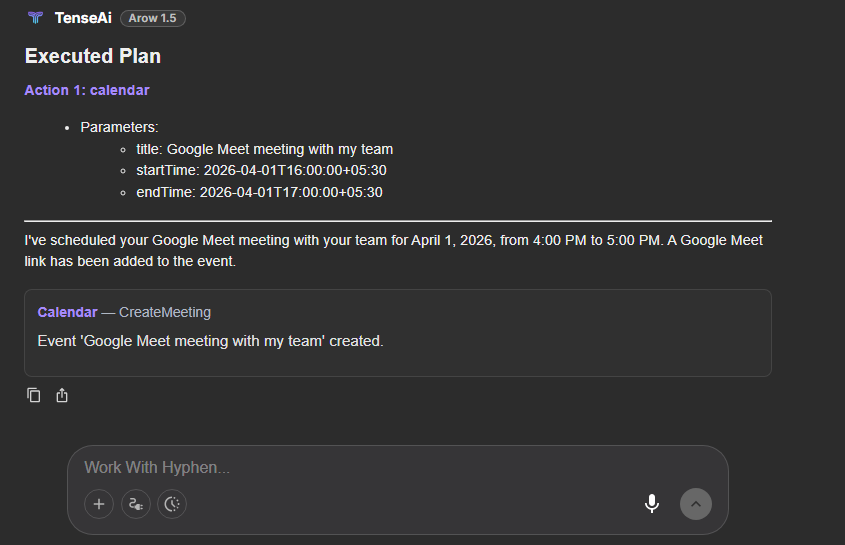
  • In the final step, TenseAI completes the Google Meet scheduling process by creating your meeting instantly after you click ‘Confirm & Execute’. The system then displays a confirmation message along with key details like the meeting title, date, and time for quick verification. This step ensures accurate scheduling, confirms successful execution, and shows that your meeting is fully set up and ready without any manual.
Meeting Scheduled