Tech
How to Connect Google Drive in TenseAI and Create Folders Automatically
Learn how to connect Google Drive with TenseAI and automate file and folder management using simple commands.

TenseAi Developer Team
Apr 07, 2026
4 min read
Learn how to connect Google Drive with TenseAI and automate file and folder management using simple commands.
TenseAi Developer Team
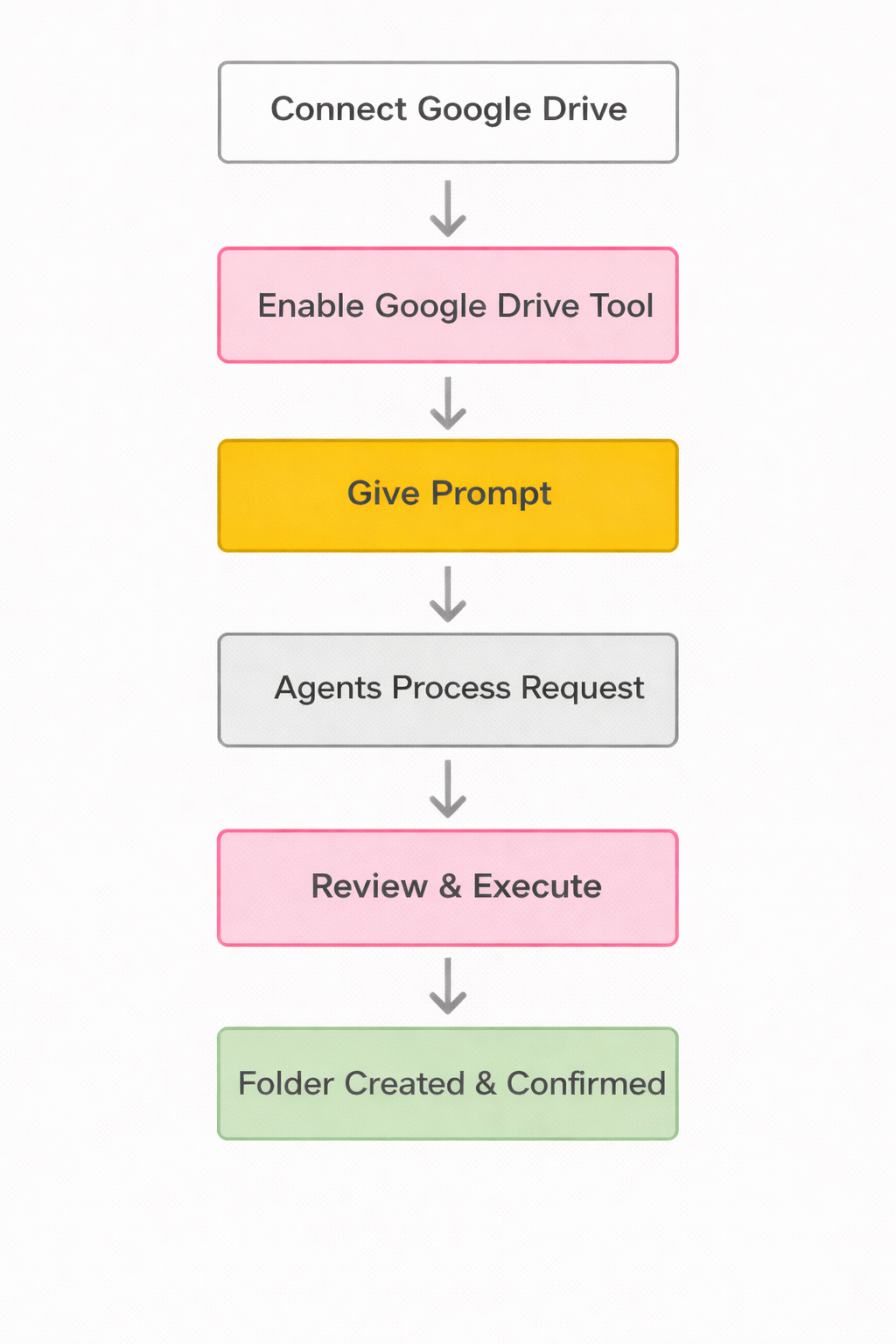
"Google Drive integration with TenseAI makes file and folder management simple, fast, and fully automated. Instead of manually creating folders or organizing files, users can just give a prompt, and TenseAI handles everything—from understanding the request to creating folders instantly. This smart automation saves time, reduces repetitive work, and improves productivity, making it easy to manage project files and organize data efficiently."
TenseAi Developer
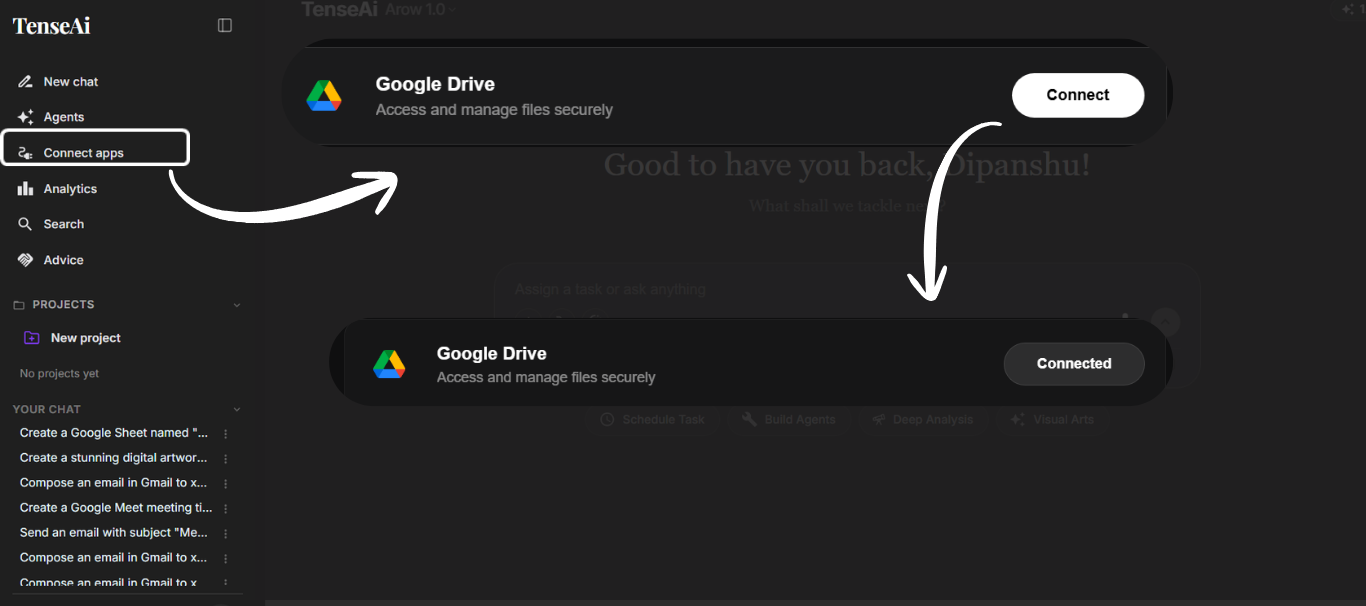
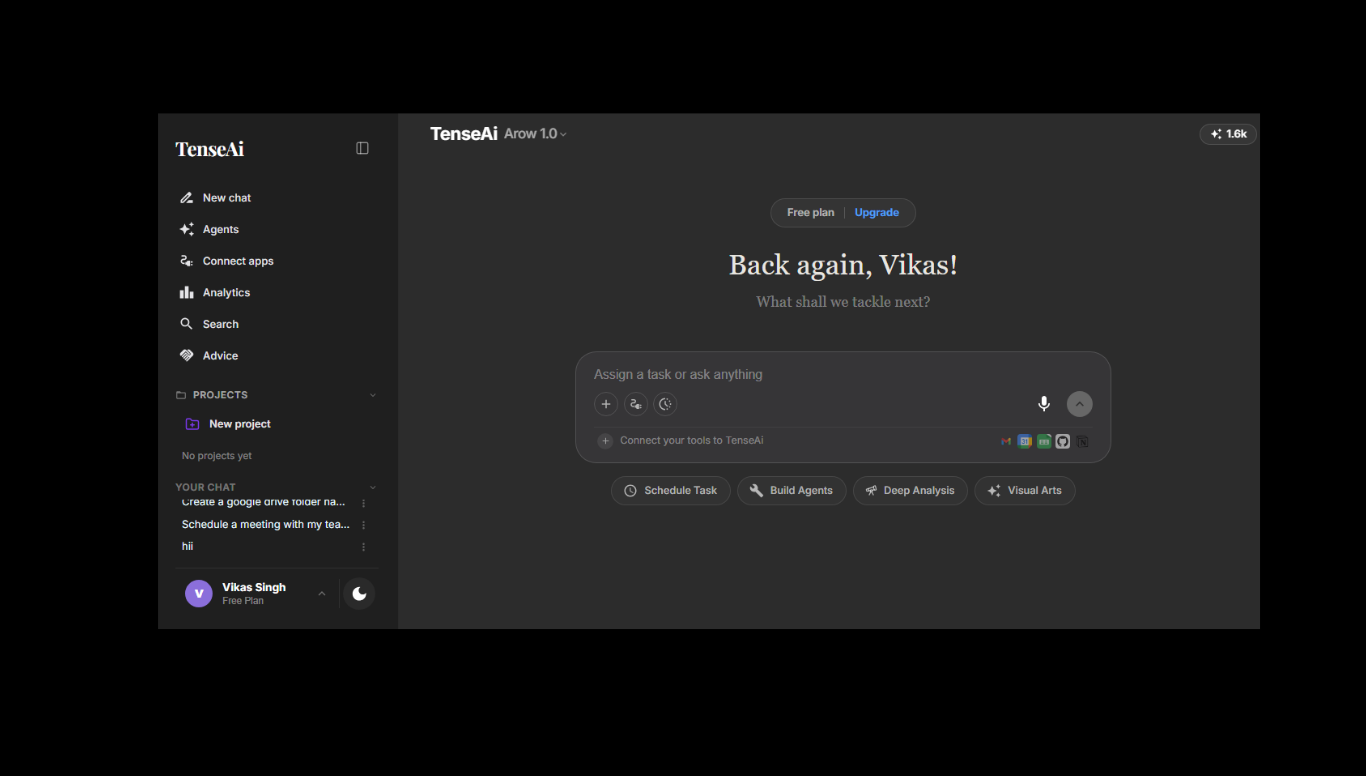
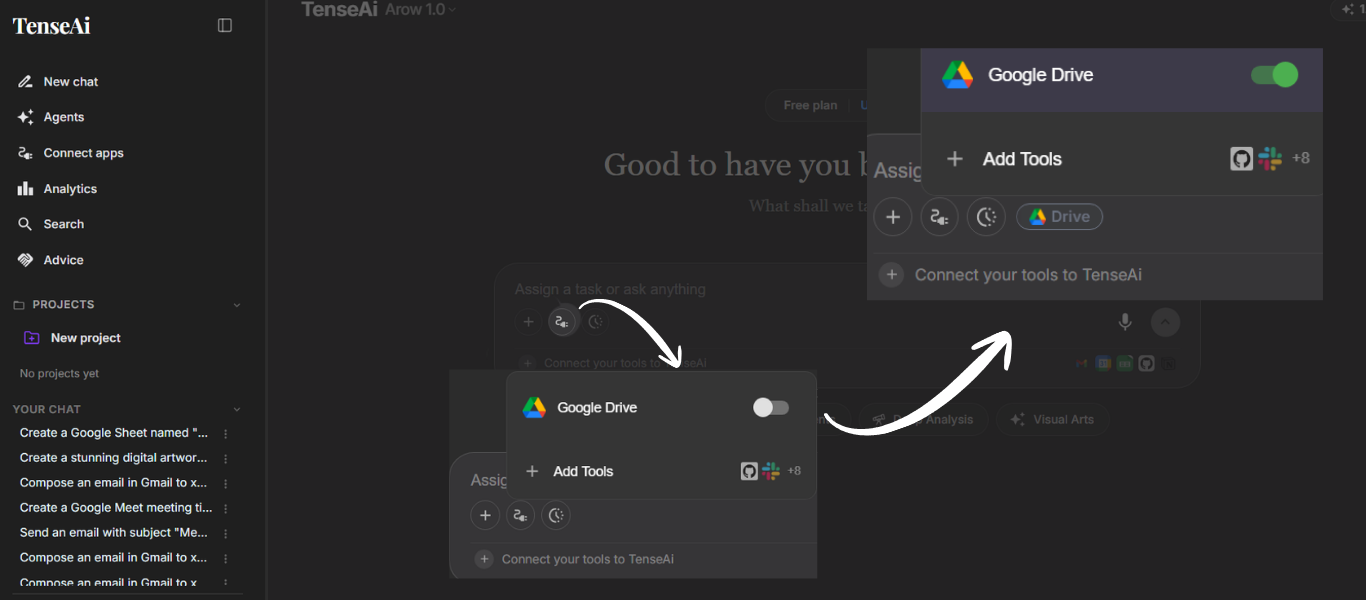
To connect Google Drive with TenseAI, simply click on the Connect button from the Tools section and sign in with your Google account. After granting the required permissions, a secure connection is established that allows TenseAI to create folders, upload files, and manage your data automatically. This step ensures safe access and enables smooth Google Drive automation for efficient file management.
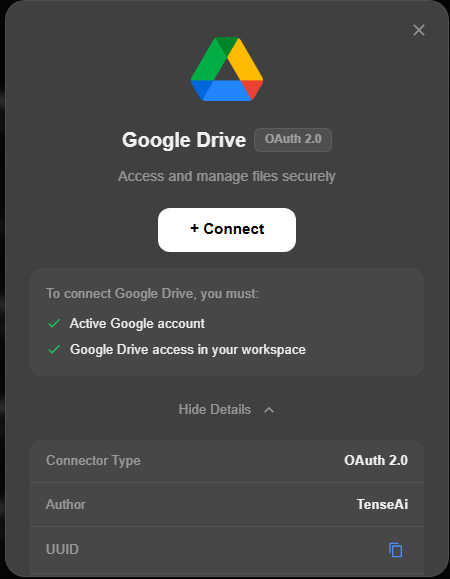
This screen shows the secure Google Drive integration process in TenseAI using OAuth 2.0 authentication. By clicking the Connect button, users are redirected to the Google sign-in page where they can log in and grant the required permissions. With an active Google account and Drive access enabled, the connection is established safely and transparently. Once connected, TenseAI can automatically create folders, manage files, and handle data efficiently, making Google Drive automation smooth and reliable.
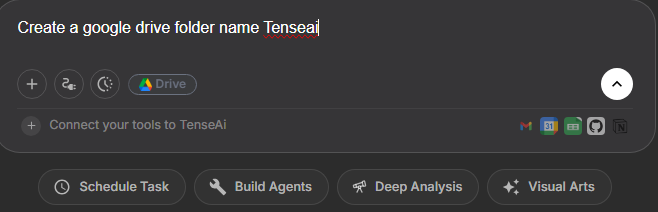
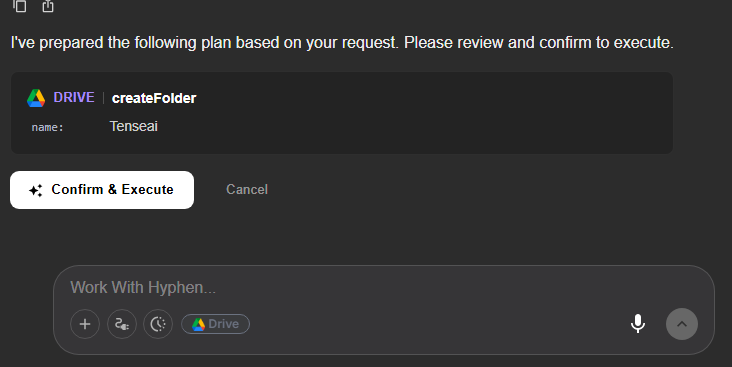
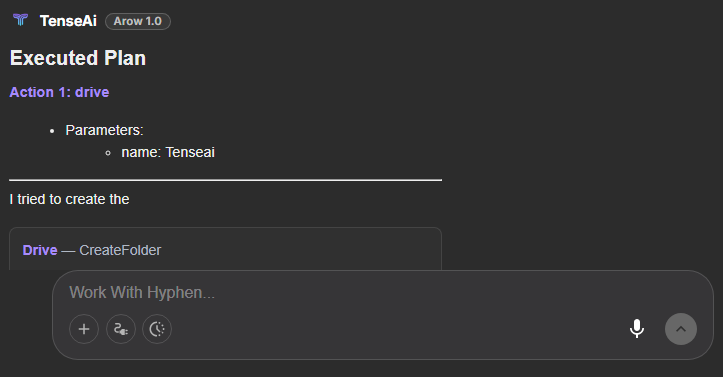
PROMPT:
Create a Google Drive folder named ‘TenseAi’