Mastering Google Drive Automation with TenseAI
Automate Google Drive workflows using AI commands for file management, organization, and productivity.
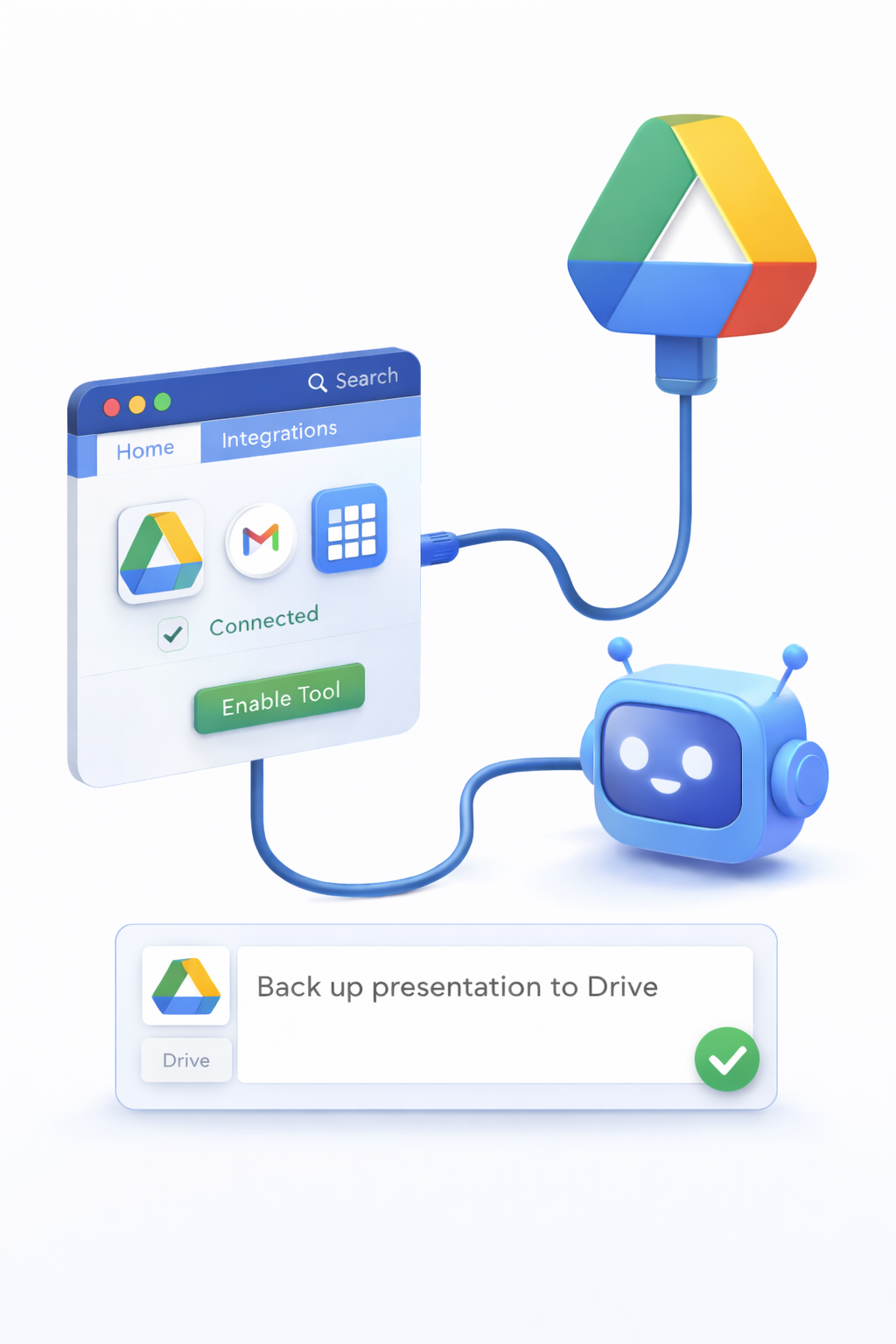
TenseAI enables you to automate Google Drive tasks using simple natural language commands. From creating folders to organizing files and managing documents, you can streamline your entire file workflow without manual effort.
Whether you're handling project files, team documents, or personal storage, TenseAI acts as your AI-powered file manager for Google Drive.
Secure Google Drive Integration
TenseAI connects to Google Drive using OAuth 2.0 authentication, ensuring secure and permission-based access. Your data remains private, and you can control or revoke access anytime from your Google account settings.
Only the required permissions are used to perform automation tasks, making the integration safe and reliable.
How to Automate Google Drive with TenseAI
What You Can Do with Google Drive Automation
Example AI Commands
“Create a folder named 'Marketing 2026' and move all related files into it.”
“Find all PDF files from last month and organize them into a new folder.”
These commands help automate repetitive file management tasks and improve productivity.
Key Benefits of Drive Automation
Best Practices for Better Automation
Start Automating with TenseAI
Build production-grade, multi-tool workflows with Kahn's DAG compilation and Universal Output Envelopes.